How to crop your images for Instagram
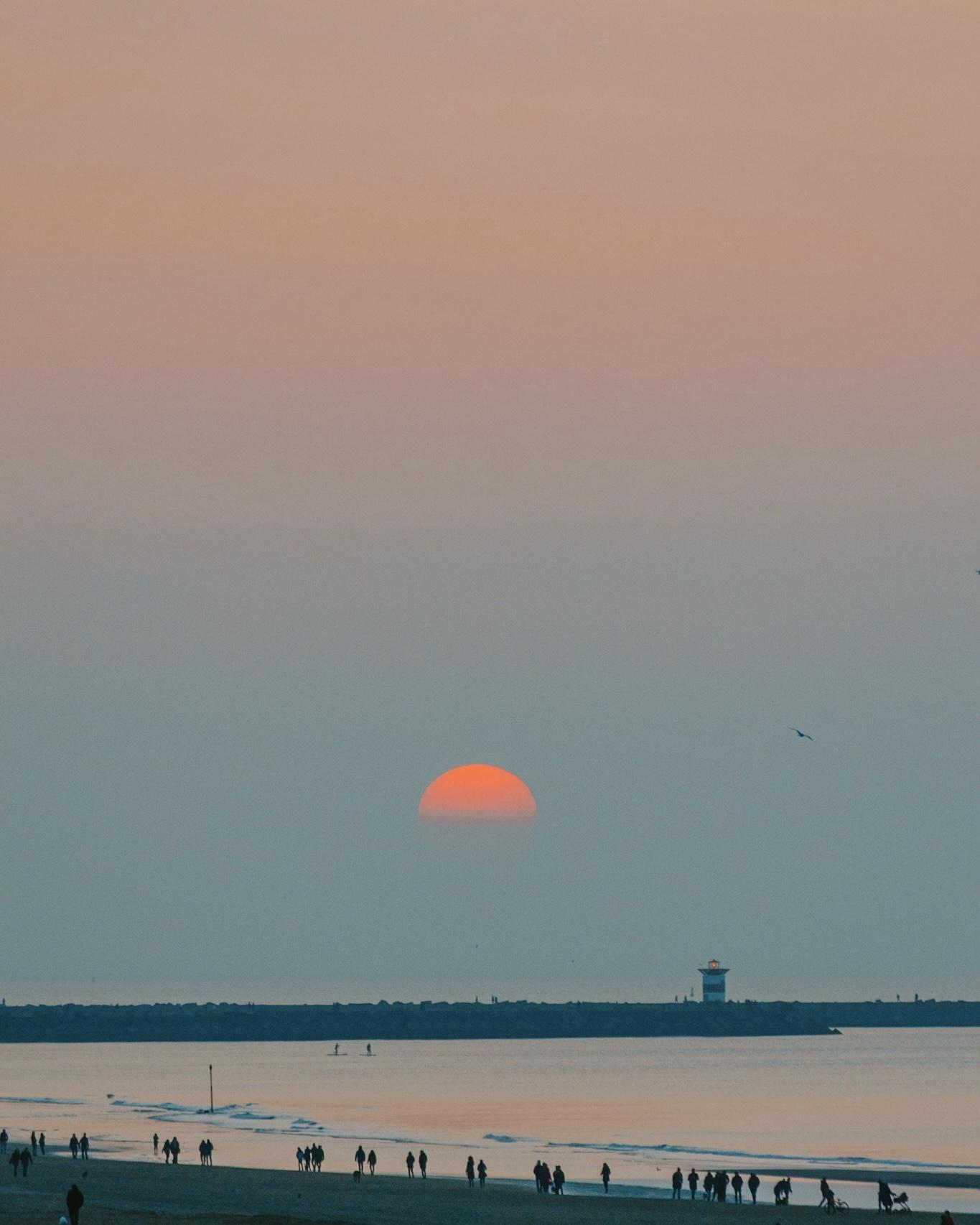 I've been taking photos for a long time now and just recently decided to post them on an Instagram account, of course, it happened that when I clicked on the “new post” button and selected my favourite photo I was disappointed with Instagram's automatic crop.
I'd just open the image in Photoshop and fix it up with a custom crop, but what if I want to do it quickly and easily on my phone? After experimenting, I found two simple ways to make sure my photos look great on Instagram, and I'd love to share them with you.
Best solution: using the Lightroom mobile app
While cropping some of my images, I was frustrated to realize that Instagram's 4:5 format didn't let me showcase all the details and composition I had carefully planned when I took and edited the shot. That was until I discovered the Add Border and Share option in Lightroom. This feature lets you scale down your photo to fit the 4:5 aspect ratio while controlling the border size and colour around the image, preserving your original composition. Here's how you can do it on your phone:
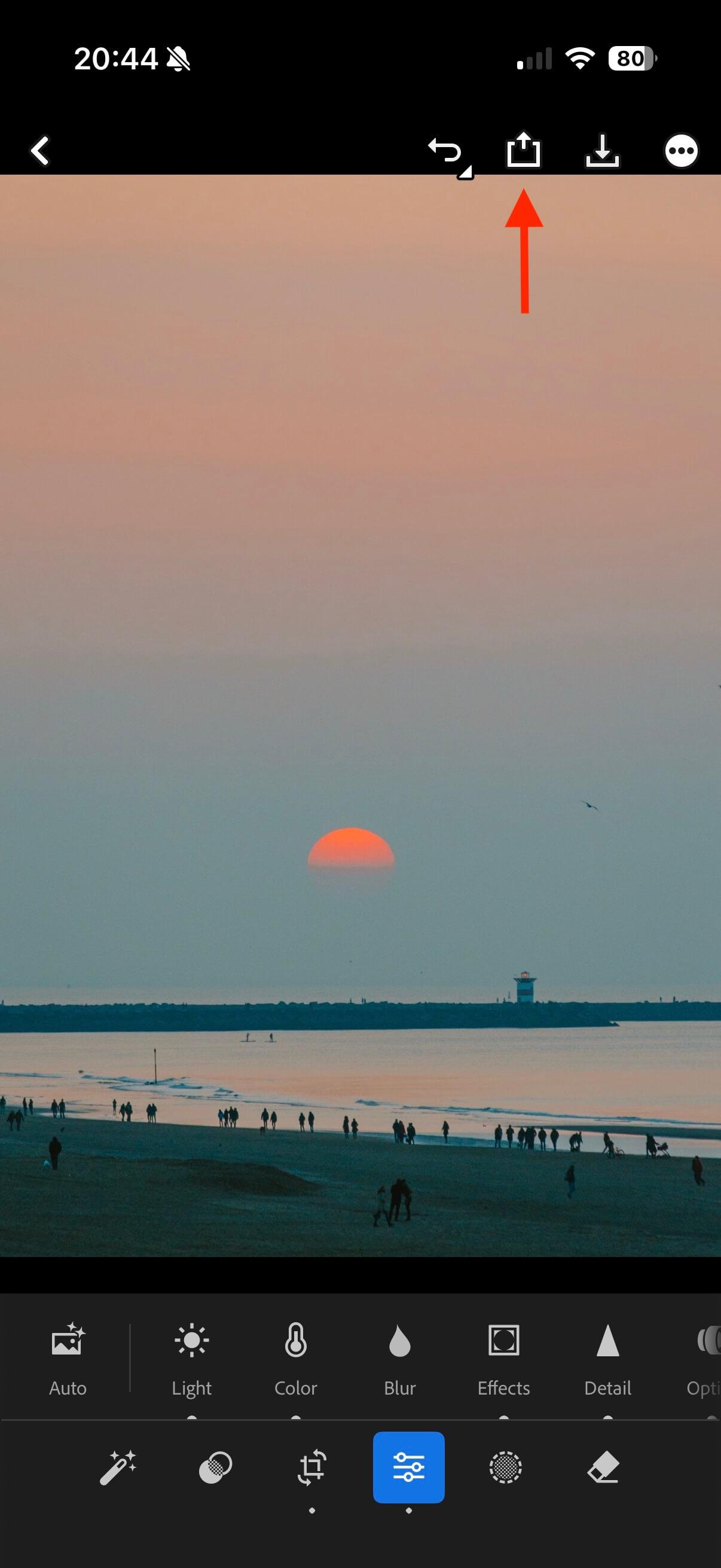
Open the image on the Lightroom mobile app and click the share button on the top of the screen:
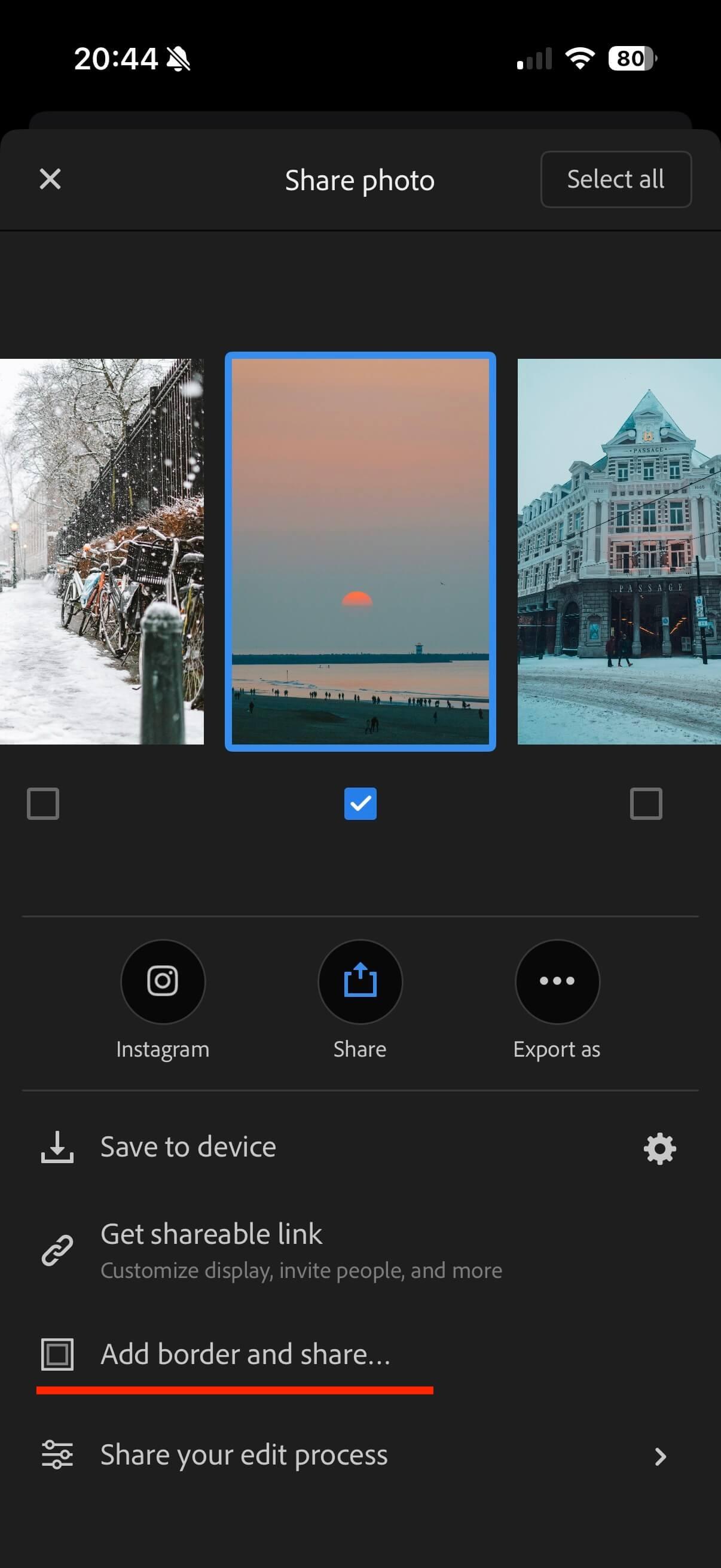
Select the “Add border and share…” option
At the bottom of the screen choose the 4:5 aspect ratio icon:
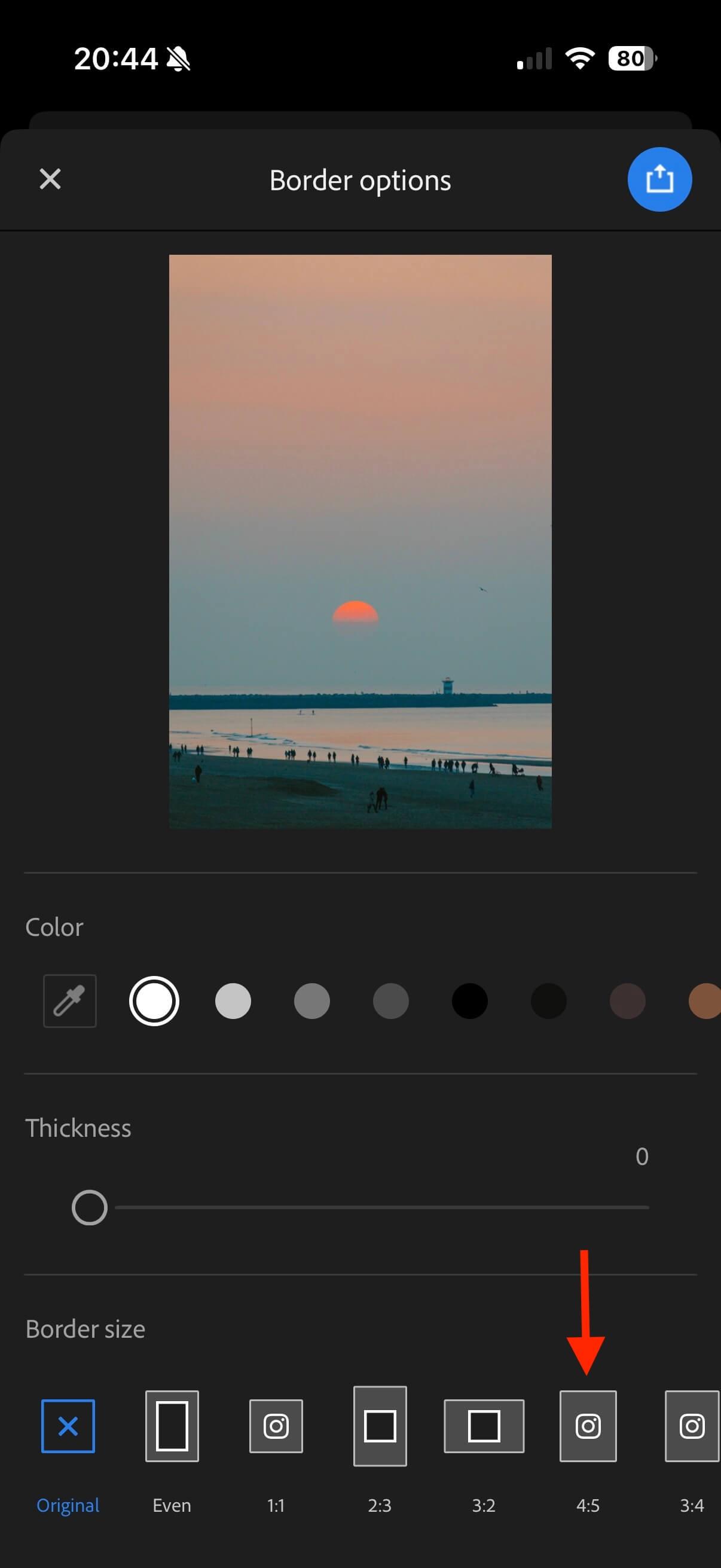 (5:4 if your photo is in Landscape)
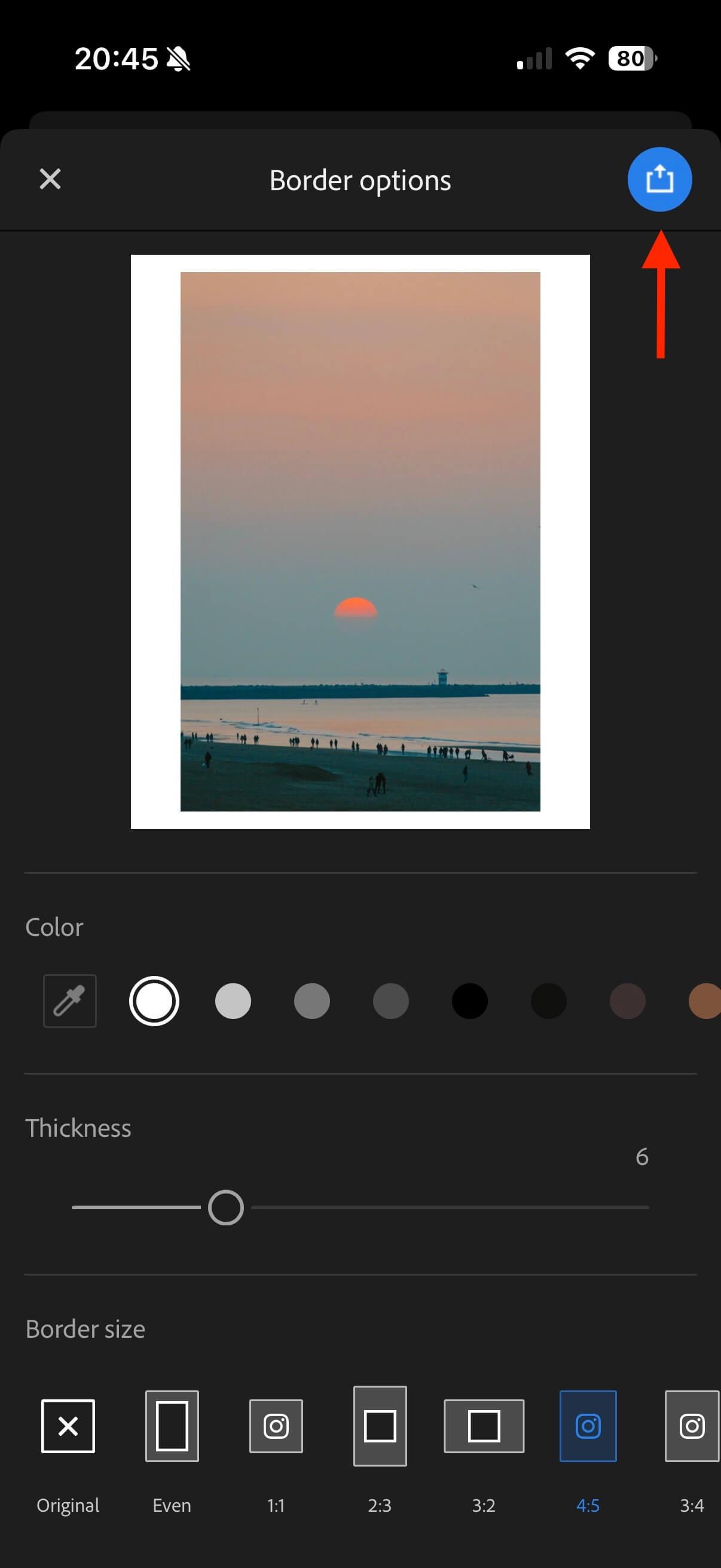
This is the best part where you can control the “Thickness” and colour of the borders around your image. I like using a white border because most people view Instagram in light mode, making the borders blend seamlessly and appear "invisible". For those using dark mode, sometimes the white border can give your post a clean, professional look.
Now you just have to click the “Save” button on the top right of the screen and save your photo or immediately share it on Instagram
Cropping using the iPhone Photos app
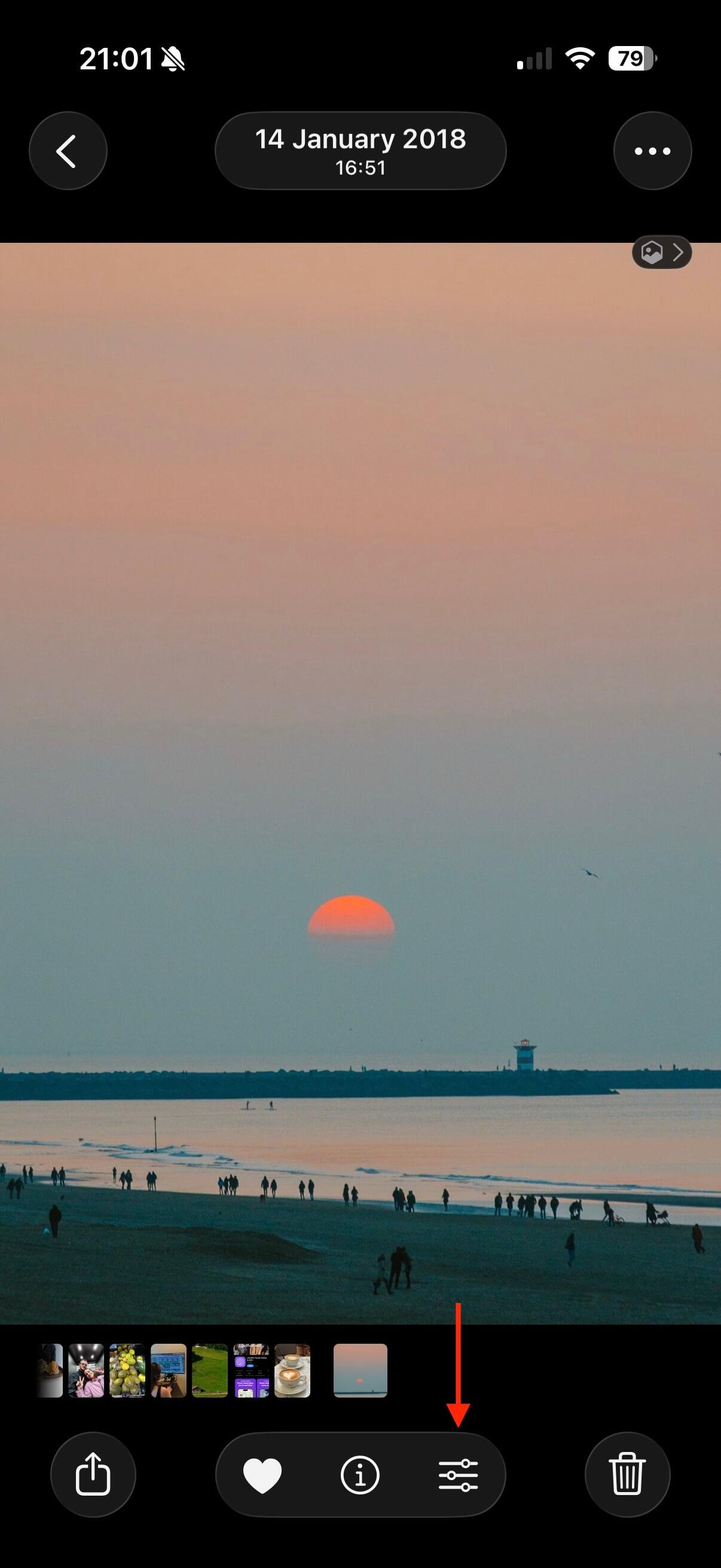
Choose the photo that you want to crop and click on the edit button
Then select the option “Crop” at the bottom of the screen
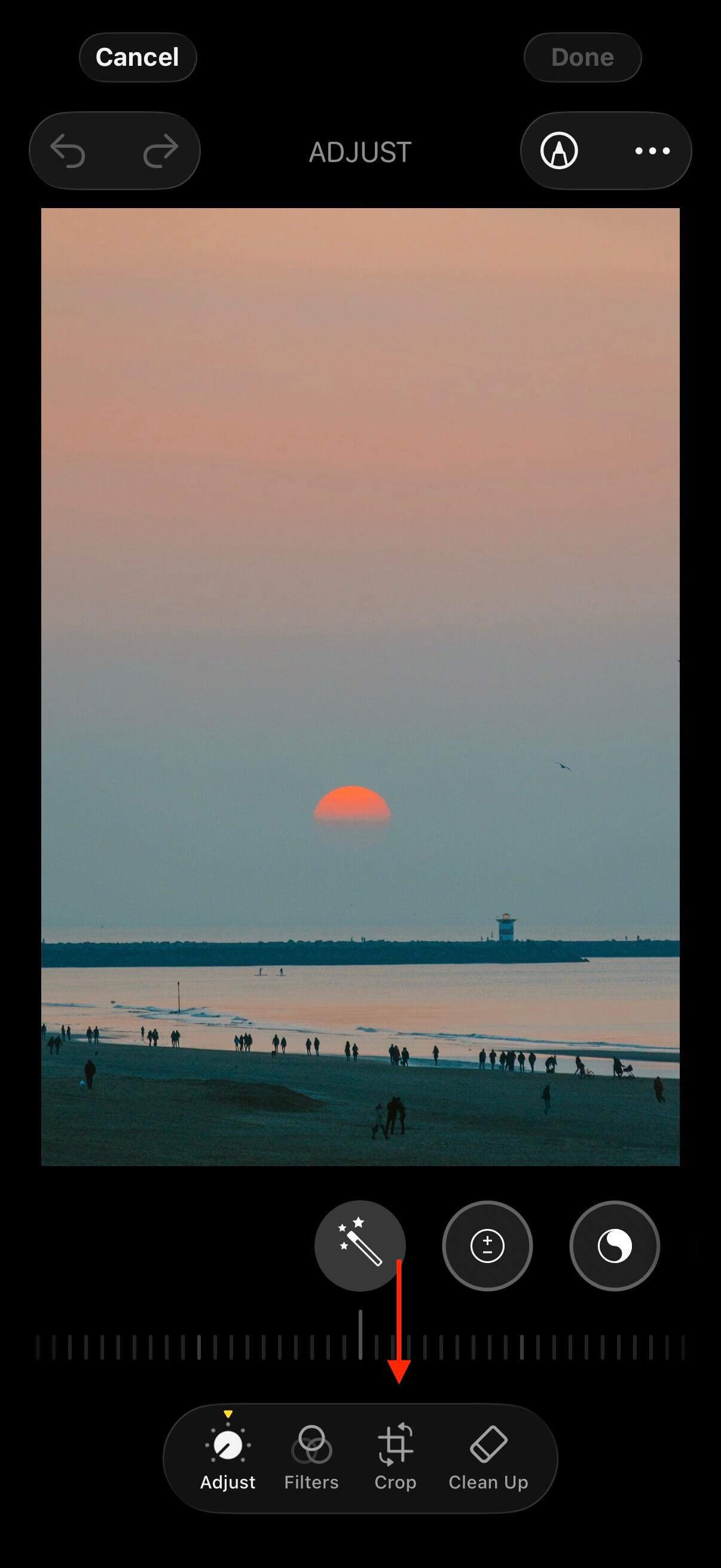
At the top of the screen, you can click on the “Sizes” icon. This will allow you to adjust the aspect ratio for your photo quickly.
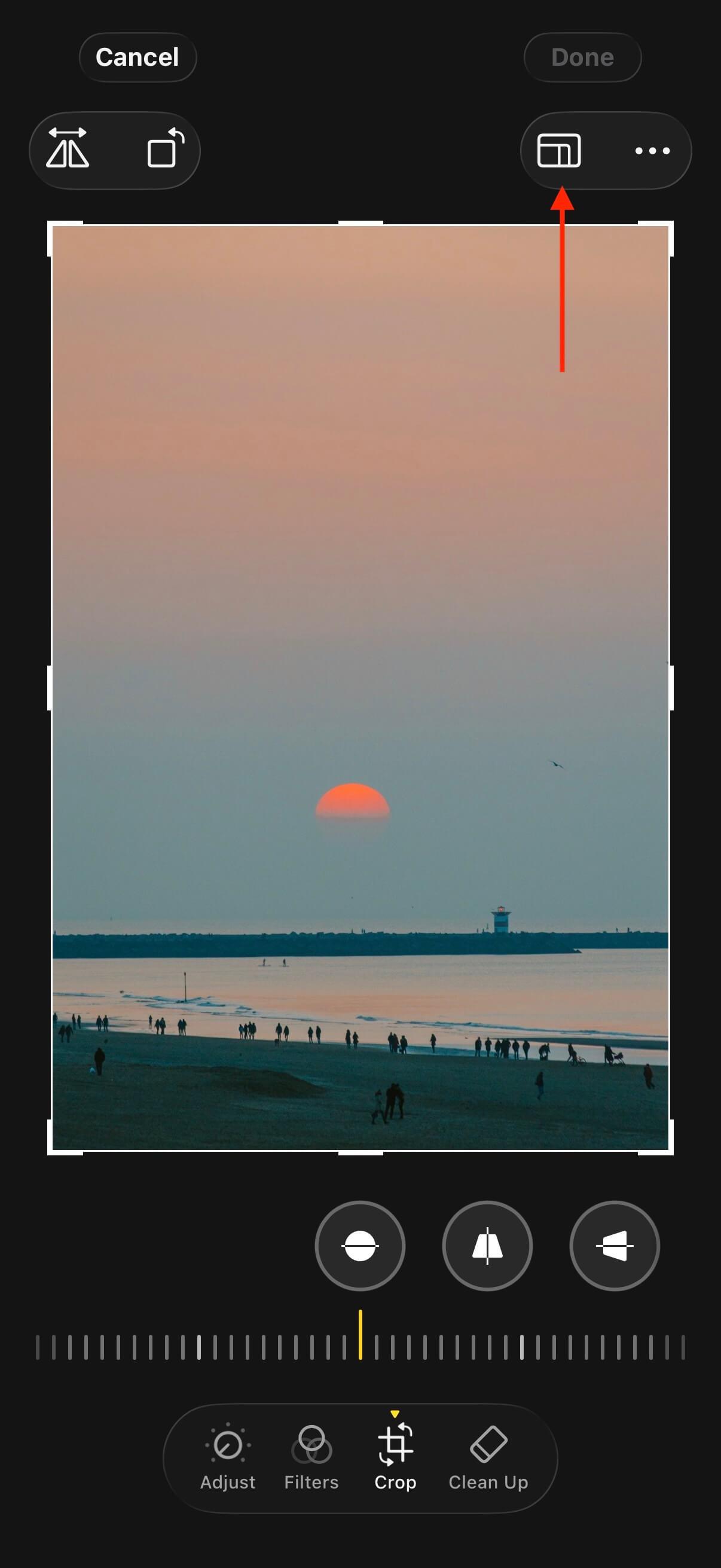
Tip: You can tap the “Crop” button at the bottom once more to reveal the “Sizes” panel
All you have to do now is scroll to the right until you see the 4:5 size.
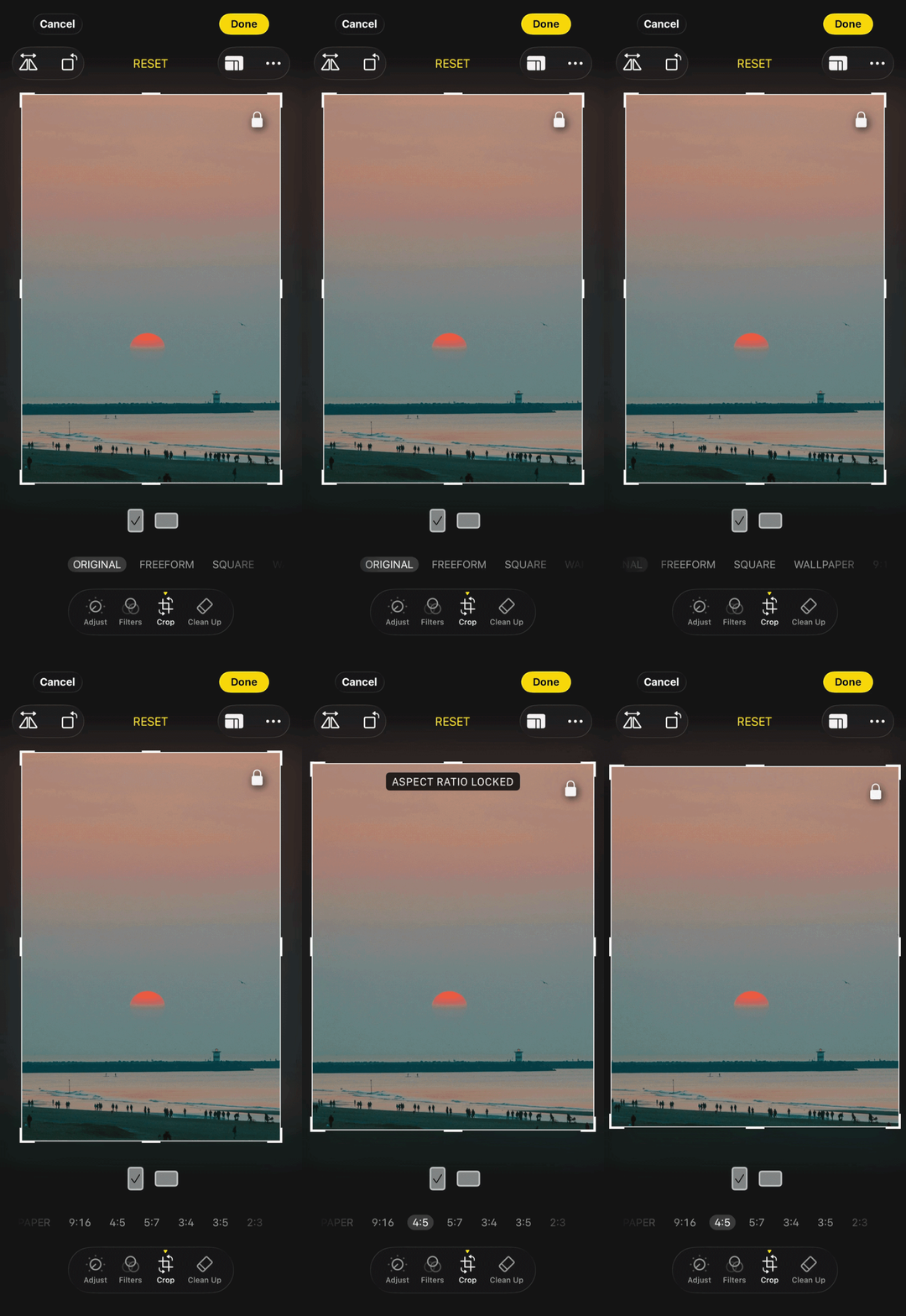
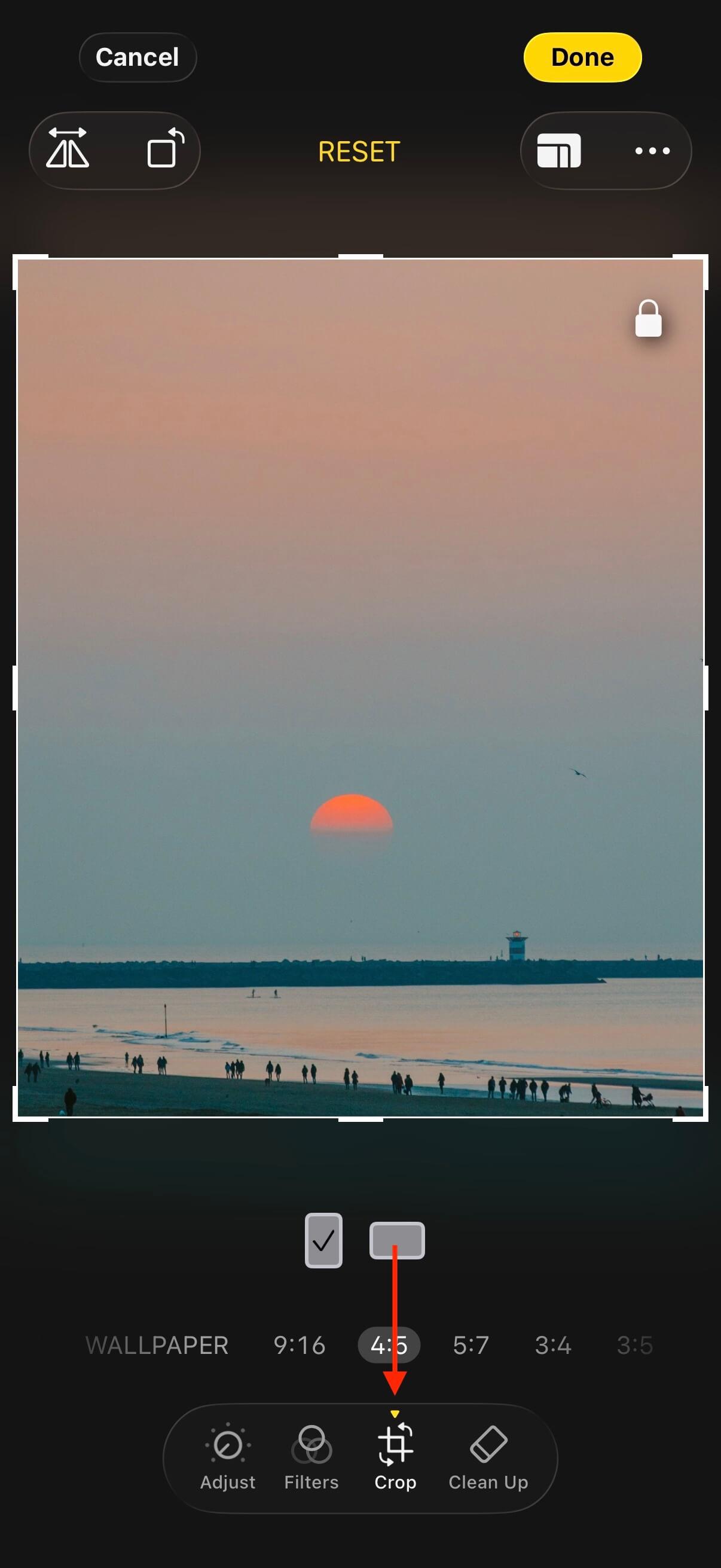
(If your photo is in Landscape, you'll see the option as 5:4)
Now just click “Done” and you're ready to go!
That's it, that's how I usually export my photos from Lightroom to Instagram. I hope you find these techniques helpful as you share your art on Instagram. If you have any other ideas or methods that work for you, please let me know.
By the way, this example photo was captured during a summer night in the Netherlands back in 2017 and is one of my favourites. If you enjoy this style of photography, feel free to explore more examples on my Portfolio page here or check out my work on Instagram: @zinatocarlos.